Manual contents
For version 0.9.9 · beta · Change
Device templates
A device template tells the plugin five things about your hardware:
- Patch range: how many patches it has, and so which patches Patchmark shows and lets you change. The patch list shows only those, Recall sends only those, and copying a patch, clearing a range and renaming several patches at once reach only those: Patchmark never changes a patch you can't see. The DX7 template, for example, lists patches 001–032
- Bank select: how the hardware switches banks: None, MSB (Control Change 0), LSB (Control Change 32) or MSB+LSB (both, MSB first)
- Default channel: the MIDI channel set when you choose the template (you can change it afterwards)
- Banks: the hardware's banks, by name, each with its own Bank Select values. Each bank has the template's patch range, and the plugin keeps a list of patch names for every bank. A template that names no banks has one. Choosing a template with fewer banks hides the others; their patch names stay in the project and come back when you choose a template that has them
- Numbering and factory names: the numbers the hardware itself shows (the Eclipse's 451, the PCM70's P1.4), and the names of its factory programs. The patch list, search, Undo, the Copy, Clear and Move dialogs, MIDI Learn and Import names all use them. A factory name shows only while a patch keeps its default name: a name you give it always takes priority, and changing templates never overwrites it
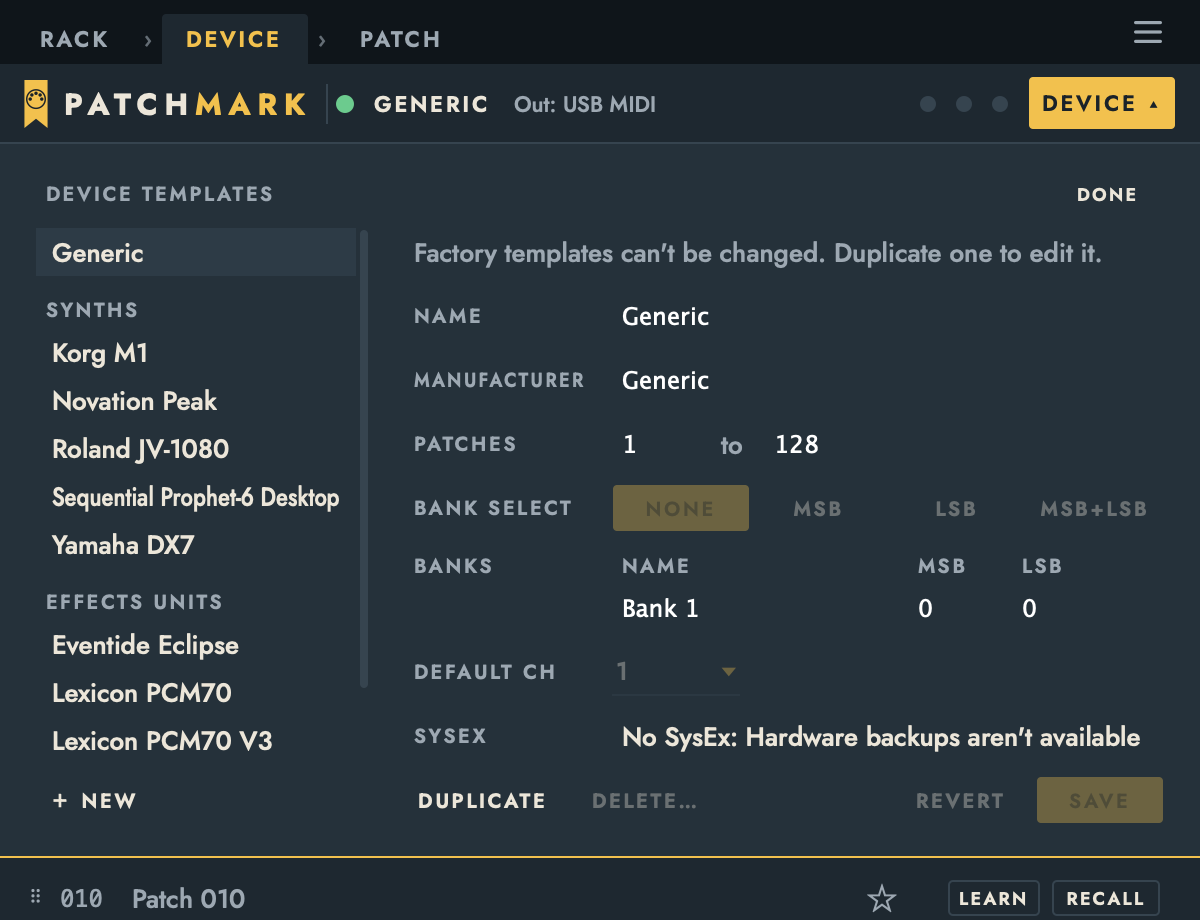
Choosing a template
- Open the device setup (Device ▾) and pick your hardware in Template. The list is grouped: Generic first, then Synths and Effects units, then Your templates: the ones you made, and any shipped template you edited. Each group is in order of maker and name, for example Lexicon PCM70
- If the new template has fewer patches and some of the patches it would hide have names, the plugin asks first, for example Switch to Yamaha DX7? The DX7 has 32 patches (1–32). Patches 33–128 keep their names but are hidden while this template is selected. When the new template has fewer banks too, it names the banks it hides that hold named patches: Patches 33–128, and every patch in Preset B, keep their names… A bank that has fewer patches in the new template is named the same way: Patches at the places Mono Dual Delay doesn't have keep their names… Click Switch to go ahead, or Cancel to keep the template you had
- The patch list stops at the template's last patch. The header shows the device and how it selects banks, for example Ch 1 · No bank select
Hidden patches are never deleted: their names, stars and tags stay in the project, and come back as soon as you choose a template that has them.
Bank select
The Bank select row of the device setup shows the template's method, with from template next to it. You can pick another method for this plugin instance if your hardware is set up differently; from template then disappears, and choosing a template again goes back to that template's method. The choice is saved with your project. A template with several banks needs Bank Select to reach them, so None is greyed out while one is chosen.
The Bank row shows a value for each controller the method sends (MSB, LSB, or both), and choosing a value sends Bank Select to the hardware. A template with no bank select has no Bank row, and neither has a template with several banks: you choose among those from the bank bar (see Switching banks). A few units pick their banks with an NRPN instead of Bank Select: the Eventide H3000 uses NRPN 8197. Their template says so, and the device setup and the template editor show it as NRPN 8197, with no other method to choose. In the template editor each bank then has one NRPN value instead of MSB and LSB. A recall sends the NRPN, then the Program Change. The status line names it as one, e.g. Sent NRPN 8197 = 3 · PC 12; the monitor shows each of its four controllers.
Bank Select follows the same rule as Recall: while no device is set up, or while Output is None or its hardware is unplugged, the Bank values are greyed out and nothing is sent.
Available templates
Patchmark comes with templates for the hardware it was checked on: the Novation Peak, the Sequential Prophet-6 Desktop, the Lexicon PCM70, PCM91 and PCM92, the Eventide Eclipse, and a Generic one for any unit. Templates for many more synths and effects units are on the website (below). Supported devices lists them all, with their patches, banks and the manual each was checked against, and says how to share a template or ask for a device. If yours isn't listed, choose Generic, or make a custom template (below).
Getting more templates
Choose Templates ▾ ▸ Get more from the website…. Patchmark asks patchmark.app for its library, and lists its templates under Synths and Effects units, each with who made it. Search, at the top, narrows the list.
- Install asks whether to use it here too, then puts it in the Template list, under its kind, and sets the device up with it. Every instance on your Mac has it from then on.
- Update appears when the website has a newer version. A template you changed in the template editor is marked Edited: updating it asks first, and Keep mine leaves your changes alone.
- Remove takes a downloaded template out of the list again. The built-in templates always stay.
Template updates
With Check for updates on (Settings ▸ Updates), the once-a-day check for a new Patchmark version also looks for newer versions of the templates you installed from the website. When there are some, ☰ shows a dot and a line such as 2 template updates…, and Templates ▾ in Device setup shows the same dot, its entry reading Get more from the website (2 updates)…. Either opens the list with the updates at the top.
Update all updates every template you haven't changed at once. If you changed any, it then asks once, Replace your changes?: Replace updates those too, Keep mine leaves them as they are, each with its own Update. The dot goes once every template is up to date. With Check for updates off, nothing is said, but the list still offers each update.
The built-in templates update with Patchmark itself.
A project that uses a template you haven't installed (from another Mac, say) keeps its device, and a banner names the template with Get it, which installs it in one click. Recognise does the same for hardware whose template is on the website.
The library's templates are built from their manufacturers' public specifications and most haven't been tried on a unit yet, so they may have gaps and issues. The first time you install one, Patchmark says so, with a link to that device's checks on its page (For beta testers): try them, and tell us what works with Help ▸ Report a problem…. Tick Don't show this again to stop the note for every template; Settings ▸ Manage ▸ Show tips again brings it back.
Patchmark checks every template it downloads against the website's signed list before installing it, so a damaged or changed file is refused. Without an internet connection, the list says so, with Try again.
Factory tags
The Eclipse, JV-1080, MX200, MX300, MX400, PCM70, PCM90, PCM91, OB-6, Prophet-6 and DX7 templates also tag each factory program, so the Tags filter can find, say, every hall or every bass. The tags come from one shared list, the same for every unit, so Hall means the same on a PCM91 as on an Eclipse. The MX200's come from its program list's effects and uses; the other MX templates take the MX200's where a program shares its title, and otherwise follow the name. They follow the maker's own descriptions where there are some: the PCM91's banks of halls, rooms and plates and its notes on what each preset is for, the Eclipse preset list's effect types and descriptions, and the Prophet-5 patch sheets for the Prophet-6's Prophet-5 programs. Elsewhere they follow the program's name. Many Prophet-6 names don't say what the sound is, so those tags are a best guess: change any that don't fit.
| Group | Tags |
|---|---|
| Sound | Bass, Lead, Pad, Keys, Poly, Strings, Brass, Woodwind, Bells, Pluck, Arp, Percussion, Texture, Sound FX |
| Space | Hall, Room, Plate, Chamber, Ambience, Gated, Reverse |
| Effect | Delay, Chorus, Flanger, Phaser, Pitch, Modulation, Filter, Distortion, Dynamics, EQ, Vocoder, Looper, Utility |
| Source | Vocal, Drums, Guitar |
Keys covers piano, electric piano, organ and clavinet; Poly is a polyphonic synth sound for chords; Texture is a soundscape or drone; Gated includes nonlinear reverbs, and Reverse inverse ones. Drums means the program was made for drums; Vocal and Guitar mean made for voices or guitar, or a voice or guitar sound.
The patch list shows them, and Tags ▾ and search find them. Once you change a patch's tags, they're yours: a newer template leaves them alone. Clear with tags ticked brings them back. A template you share should use the same list.
Custom templates
If your hardware isn't listed, make a template for it in the template editor. Open Device ▾, then Templates ▾ ▸ Edit my templates…. (When a custom template file couldn't be loaded, the warning banner has an Edit templates… button too.)
The editor lists the templates on the left: Factory first, then Custom, then any custom file that couldn't be loaded, marked ⚠. It opens on the template your plugin uses. Click a template to see its values on the right:
| Field | What it is |
|---|---|
| Name | The hardware's name, as the header and the Template list show it after the manufacturer |
| Manufacturer | Optional. Shown before the name ("Lexicon PCM70") |
| Patches | The first and last patch the hardware has, 1–128, numbered as in the patch list. Patch 1 is Program Change 0 |
| Bank select | None, MSB, LSB or MSB+LSB, as described under Bank select |
| Banks | One line per bank: its name, and the MSB and LSB values (0–127) that select it. + Add bank adds one after the last, with the next value; ✕ removes a bank (a template always keeps one). The list scrolls past four banks |
| Default ch | The channel set when you choose the template, 1–16 |
- Start a template. Click + New to start from Generic's values, or select any template and click Duplicate to start from a copy of it ("DX7 copy"). Factory templates can't be changed: duplicate one to make your own version
- Fill in the fields. A value that isn't valid turns its field red and says why under it, for example Last patch must be between 1 and 128. Two templates can't have the same manufacturer and name. Save stays disabled until every field is valid; Revert puts back the values last saved
- Save. A message confirms it, for example Saved “Clavia Nord Lead 2”. It's now in the Template list. Click Done to go back to the device setup and choose it in Template. If you are editing the template this plugin uses and the new range would hide patches you have named, the plugin asks first, as choosing a template does: Save “Clavia Nord Lead 2”? This track's patches 33–128 keep their names but are hidden while this template is selected (2 named patches). Click Save to go ahead, or Cancel to keep editing. Other open plugins that use the template are not asked; their names are kept too
- Delete. Select a custom template and click Delete…. The plugin asks first: Delete “Clavia Nord Lead 2”? Plugins using it switch to Generic. Their patch names are kept. This can't be undone. Click Delete template to delete it, or Cancel
A template is saved for every plugin on this computer, not in the project. A project remembers its template by an ID made from the manufacturer and name when the template was first saved (renaming it later keeps the ID), so editing a template changes every project that uses it.
Other plugin windows that are already open see a saved or deleted template the next time you open their Template list or their template editor. A plugin whose template was deleted switches to Generic then, and keeps its channel and its patch names.
A project opened on a computer that doesn't have its custom template uses Generic's 128 patches until the template is added there, and keeps the template's ID when you save it.
A template with several banks needs a bank select method other than None, and every bank needs a name and values within 0–127; a bank missing either is flagged on its field, with the bank's number in the line under the list (Bank 2: MSB must be between 0 and 127.). The hardware's own patch names for a bank (factory templates have them) stay with the bank when you rename it or change its values. Saving a template with fewer banks hides the banks it no longer has in plugins using it; their patch names are kept and come back if you add the banks again. The editor doesn't edit SysEx settings: a duplicate keeps the template's own.
Template files
Each custom template is a JSON file, which you can copy to another computer or write by hand: Template files describes the format.
Sharing a template
Made a template for hardware Patchmark doesn't ship, or corrected one that does? Share it, and it can become a factory template in a later release.
- Choose the template in Device ▸ Device setup. If you typed in the hardware's factory patch names, show that bank.
- Choose Library ▸ Submit this template…. The sheet shows what will be sent: the template and, ticked, the bank's names as the hardware's factory names. Untick them when they're sounds of your own: only the hardware's factory names belong in a template. Names the template already has, and untouched "Patch 001" names, are never sent.
- Click Continue in browser. Your browser opens patchmark.app/contribute with everything filled in. There you can add a name to credit, confirm that you may share it, and send it for review. Nothing is sent from the plugin itself.
A very large submission doesn't fit in a link. The plugin then asks where to save a
.patchmark-submission.json file, and the website asks you for that file. Submissions over 1 MB aren't
accepted; try again without the names.
This manual is for version 0.9.9.