Manual contents
For version 0.9.9 · beta · Change
Choosing the MIDI input
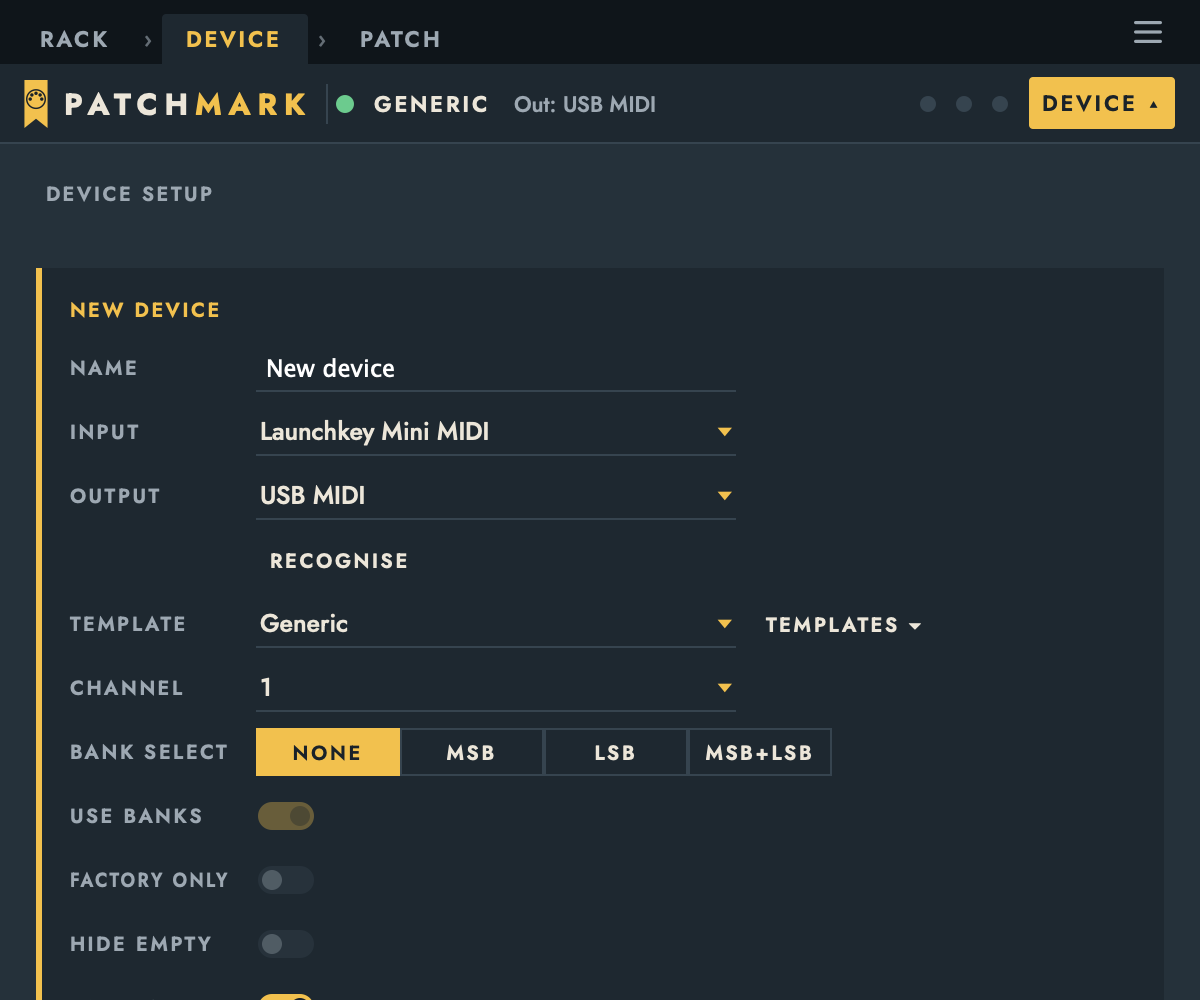
Input, under Output in the device setup sheet, is where Patchmark listens: MIDI Learn and the MIDI monitor use it. It is chosen separately from the output, so you can send patch changes to your hardware and listen to a controller keyboard or pad.
Choosing it
- Click Device ▾ at the top right. The Device setup sheet drops down over the patch list
- In Input, pick the MIDI input to listen to: your hardware's answers to Recognise and to a read arrive there, and MIDI Learn and the monitor listen there. The list has your MIDI interfaces and controllers, and virtual ports such as the IAC Driver buses or another app's virtual port. None (where a new plugin starts) listens to nothing
- Click Done
Your choice is saved with the project.
Seeing MIDI arrive
When an input is chosen, the header names it, for example Ch 1 · In: Launchkey Mini MIDI · Out: JV-1080 MIDI 1. The IN light next to the Device button flashes whenever MIDI arrives from that input. MIDI clock (and its Start, Continue and Stop) and active sensing don't light it: a DAW or a unit that sends clock all the time would keep it lit. Instead the CLOCK light beside it blinks on every beat while clock arrives, and goes dark when the clock stops. Start, Continue and Stop show in the MIDI monitor.
The CLOCK light is there only when your device's template says the hardware can send MIDI clock, as the Prophet-6 Desktop's, the Eclipse's and the PCM 91's do, and with the Generic template, which can stand for a drum machine or a sequencer. For a unit that never sends clock, such as the PCM 92, it is hidden and IN and OUT sit next to the Device button. Clock arriving from such a unit still never lights IN.
If the input is missing
If the controller is unplugged, or wasn't plugged in when the project opened:
- The sheet says Disconnected. MIDI Learn is unavailable until it's back. under the input, in red
- The header adds unavailable to the input's name, and the IN light turns red
- The plugin keeps your choice and reopens the input by itself as soon as it's plugged back in
If another app is holding the input, the sheet says Couldn't open Launchkey Mini MIDI. Another app may be using it. Click Try again once the other app has let go, or pick another input.
This manual is for version 0.9.9.