Manual contents
For version 0.9.9 · beta · Change
The rack
The rack shows every Patchmark in your project as a unit in one rack: the JV-1080 on your Lead Synth track, the Eclipse on Guitar FX, the PCM91 on Vocals. From any Patchmark window you can see what each unit is on, watch its MIDI come and go, and open any of them without looking for its track.
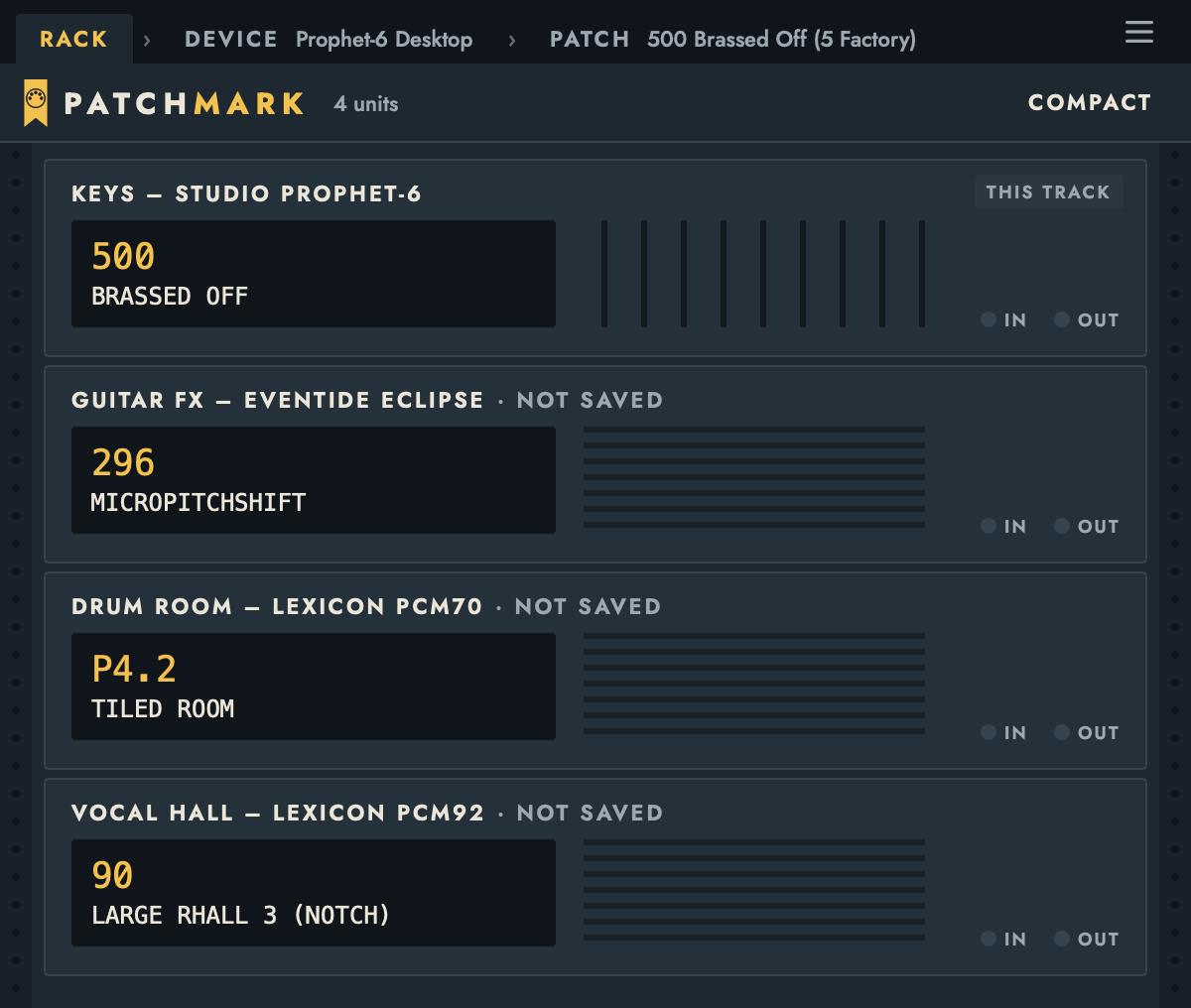
Rack and Device
Two tabs sit at the very top of every Patchmark window, even when the project has only one:
- Rack: every Patchmark in the project, as units.
- Device: the patch list, the device setup and the menus, as before.
A new Patchmark opens on Device. Each window reopens on the tab you left it on, with the project.
In the rack, the header counts the units (3 units) and the Undo · Edit · Library line and the search are hidden: they belong to a device, so they come back on Device. The scene row lives in the rack, under the header.
A unit
Each unit shows:
- Its name: the track's name and the device, Lead Synth – Roland JV-1080. The track's name is the one your DAW gives it; rename the track in your DAW to change it. Until the DAW tells Patchmark a name, the device alone. A device saved in My devices shows its saved name; a device still on its template reads · not saved after its name.
- This track, on the unit of the window you're in.
- Its display: the patch the hardware is on, its number in gold over its name.
- IN and OUT: blue when MIDI arrives from the hardware, green when Patchmark sends to it.
- Its front: slider grooves for a synth, vent slots for an effects unit, a grille for anything else.
Units keep their size and the rack scrolls. Compact in the header shows one slim row per unit; click it again for full units. Each window remembers its choice. In a narrow window the front's drawing goes first; the name, display and lights stay.
Open a unit
- Click a unit to select it. The help line reads OPEN Double-click to open Guitar FX – Eventide Eclipse.
- Double-click it to open that device in this window, on the Device tab. Its header carries the unit's name. Recall, banks, tags and MIDI Learn work there as in the device's own window, and what you change is saved with that device's track.
- Rack takes you back. Device then opens the unit you had open, or this window's own.
If the unit you have open leaves the project, because its track was deleted or Patchmark removed from it, the window goes back to the rack.
Reorder the rack
Units are in the order you added them. Drag a unit up or down to move it: a gold line shows where it goes. Every Patchmark window shows the new order, and a message says where it went, with Undo to put it back.
In your DAW
Separate two open projects
In DAWs other than Logic and Live, a fresh instance joining an existing rack asks once when you first open its window: Does this track belong to this rack? Choose Keep in this rack when adding a track to the same project, or Separate project… for another project. Saved projects and reopened windows don't ask.
You can also choose Rack ▸ ☰ ▸ Separate project… in any DAW. Tick this project's other units; This track is always included. Identify brings a unit's already open plugin window forward and names its track, useful when a Save As copy has the same track names as the original. Open the units' own windows first if you need to identify them.
Separate gives those units their own rack and a copy of their scene assignments. A Save As copy keeps its saved scenes; later edits in the original don't replace them. Other units stay in the previous rack. This sends no MIDI. Cancel leaves everything as it is.
Save the project in your DAW to remember the separation. For a new project, separate its first instance before adding more.
Where a new Patchmark goes
A new Patchmark joins the rack you used last. The plugin knows the DAW's name, but the DAW doesn't tell it which open project a new instance belongs to.
While two or more racks are open, the rack's header names the one you're in after the count, by its first track: 3 units · rack with Lead Synth. With one rack it reads 3 units.
In Logic and Live, a new Patchmark's first window also says which rack it joined, once, while another rack is open: Joined the rack with Lead Synth and Vocals. Move… opens Move to rack. In other DAWs the question above offers Move to rack… as well.
Move a unit to another rack
Choose Rack ▸ ☰ ▸ Move to rack…. It shows only while another rack is open in your DAW.
- To: the rack to join, named by its tracks. With one other rack it is chosen already. Identify brings that rack's open plugin windows forward.
- Move: this rack's units. This track always goes; tick any others to take along. Tick them all to make the two racks one.
Move puts the units at the end of the chosen rack. Their scene patches go with them, into the scene of the same name there, or into a new scene after the last. A rack holds 16 scenes: a scene with no room stays behind, and a message says how many. This sends no MIDI. The message after the move has Undo, which puts them back in their old rack with its scenes as they were. Cancel leaves everything as it is.
Save both projects in your DAW to remember the move.
The rack shows the Patchmark windows of one plugin format in one DAW project: AU or VST3, not both at once. Most DAWs tell Patchmark the track's name; when yours doesn't, a unit shows its device's name alone.
Patchmarks in separate processes
Some DAWs can run plug-ins in separate processes, such as Bitwig's plug-in hosting and Reaper's Run as. Patchmarks in separate processes don't see each other, so the rack shows only some of the project's units and a scene recalls only those.
When that happens, a banner says Patchmarks in separate processes: the rack shows only some. It names the setting to change in your DAW. Open the manual… opens this manual: the pages for Bitwig Studio and Reaper show how. Change it, then reopen the project. The banner goes once every Patchmark runs together. Its ✕ hides it until then.
Two copies of the same project open in two DAWs at once show the banner too.
This manual is for version 0.9.9.