Manual contents
For version 0.9.9 · beta · Change
Song scenes
A scene sets every hardware unit in your project to its patch for a part of the song at once: Verse puts the JV-1080 on a pad, the Eclipse on a short delay and the PCM91 on a small room; Chorus switches all three. Scenes belong to the whole project, so every Patchmark window shows the same ones, and deleting a track keeps them.
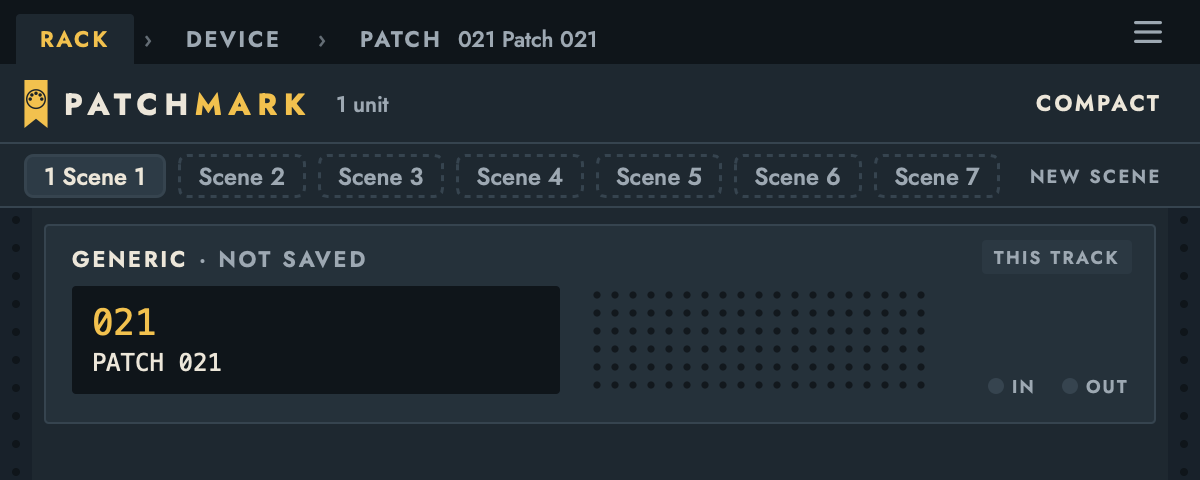
The scene row
The scenes sit in a row at the top of the rack, under the header, numbered 1 to 16: 1 Verse, 2 Chorus, 3 Bridge. After your scenes, the row fills the window with empty slots, drawn with a dashed outline and named after their numbers: Scene 4, Scene 5. A wider window shows more of them. New scene is at the end of the row. Click Rack at the top of any Patchmark window to see them.
The row is off until you turn it on in Settings ▸ Scenes ▸ Use scenes (☰ ▸ Settings…, at the top right, beside the tabs), so a rack without scenes keeps more room for your units. Turn it on to save your first scene.
The scene every unit is on right now is lit, whether you recalled it or picked its patches by hand. Change a unit's patch so the units match no scene, and none is lit; recall a scene to put every unit back.
Use scenes is one setting for your whole rack, whichever devices your tracks use.
Done with scenes? Turn Settings ▸ Scenes ▸ Use scenes off again: the row hides in every window, and nothing recalls a scene, neither the Scene lane nor your controller.
Scenes or favourites on the timeline
Your DAW's automation follows one lane for the whole rig: Settings ▸ Scenes ▸ Automation follows picks the Scene lane (the default) or the Favourite lane. The other lane reads "(off)" in the DAW and does nothing, so the two never fight over a patch. With Use scenes off, automation follows favourites.
Save a scene
- Recall the patches you want on each unit.
- Click an empty slot, such as Scene 4. Patchmark asks Save current patches as scene?, with the name already selected.
- Type a name, such as Chorus, and press Return. The scene keeps every device's current patch under that number. It becomes the selected scene in every Patchmark window, lit because your units are on its patches. Undo puts the selection back where it was.
Need more slots than the window shows? Click New scene: the row shows one more empty slot. When the names no longer fit, every slot shows its number only. Hover over one to see its name in the status line. Your project remembers the extra slots. New scene disappears once all 16 show.
A device you add to the project later isn't in the scenes saved before: recalling them leaves it as it is. To add it, recall the scene, choose the device's patch, then right-click the scene and choose Save current patches.
Recall a scene
Click the scene. One click recalls it; a double-click recalls it just once.
Each unit gets its patch in turn, a moment apart, as when a project opens. The status line says what was sent, for example Sent 2 Chorus · 4 units. Every unit follows your settings on this Mac: with Send Program Change off it only marks the patch (Program Change).
If you pick a patch on a unit's front panel while a scene is being recalled, the hardware keeps your choice.
Rename, update, reorder and delete
Right-click a scene:
- Rename: the name opens selected, so you can type straight over it.
- Save current patches: the scene takes every device's current patch.
- MIDI Learn or Configure MIDI…: see below.
- Delete: the slot stays in the row, empty, named after its number (Scene 3).
- Delete all scenes…, below a line (also on an empty slot's right-click): asks first, then deletes every scene of the project, with its MIDI Learn trigger, as one undo step. Your units stay on the patches they're on.
Over a saved scene the pointer becomes a hand: drag a scene onto another to swap their numbers, or onto an empty slot to move it there. While you drag, the scene follows the pointer, the slot it would land on is outlined, and the help line at the bottom says what letting go will do; let go anywhere else and nothing changes. The Scene lane recalls by number, so a lane drawn for scene 2 then recalls the scene now numbered 2.
Each change is confirmed in a short message with Undo, and every change can be undone in the window where you made it.
A device that's gone
Delete a track that a scene uses, and every Patchmark window says so straight away: 2 Chorus uses Bass – Sequential Prophet-6 Desktop, which isn't in the project any more. Nothing is taken out of the scene by itself. Click Remove from scene to take the device out of every scene that holds it; Undo puts it back. Undo the track's deletion in your DAW instead, and the device is back in its scenes and the message goes.
Close the message and the scene still holds the device: recalling the scene says so again: Couldn't recall 1 unit in 2 Chorus: Sequential Prophet-6 Desktop isn't in the project., with Remove from scene.
A track that drives another device now
Choose another template for a track in Device settings, or load a device with another template from My devices, and the track leaves every scene saved while it was the old device, since those patches belong to the old hardware: Removed Sequential Prophet-6 Desktop from 2 Chorus: this track's device is now Novation Peak. Undo puts it back. The same goes for every track using that saved device when another track changes its template and saves it. Choosing the same template again changes nothing. To put the track in a scene on its new device, recall its patch and use Save current patches.
A new Device, set up with Set up new device or on a track that uses none of My devices, isn't the track's until you keep it: its settings, and Discard, leave the scenes alone. When Use, Save or closing the sheet would take the track out of scenes, Patchmark asks first, naming them; Continue takes it out (one Undo puts it back), Go back returns to the setup.
Recall scenes from a controller
Right-click a scene, choose MIDI Learn, then press a button or pedal on your controller. While it listens, the scene reads LEARN in orange and blinks, and a message at the bottom of the window says what to play, until the scene learns or stops; its Cancel, Esc or a click on the scene row stops it. The scene shows what it learned, such as PC 5.
A scene remembers a Control Change together with its value: a pedal or button that sends CC 30 = 10 recalls one scene, and the same CC at = 20 can recall another. So one CC can serve every scene. A knob or expression pedal sweeps through many values, so it isn't a good scene trigger.
Configure MIDI… in the same menu types the trigger in, for when the controller isn't at hand: choose a Program Change, a CC (any value above 0, or only one value) or a note (at any velocity), and its channel. Its Learn fills the fields from the next message, so you can check them before Save; Clear removes the trigger. A trigger that already recalls a patch or another scene is refused, naming it, and so is Bank Select (CC 0 or 32) and, on hardware that picks its banks by NRPN (the Eventide H3000), CC 99, 98, 6 or 38.
A scene listens on the Input of the track whose window you learned or typed it in, and on the controllers ticked in Settings ▸ Controllers; wherever Patchmark shows the trigger, it names the scene: CC 30 = 20 on channel 1 · Chorus. A message that reaches several Patchmarks at once recalls the scene once. With Use scenes off, no MIDI recalls a scene. See MIDI Learn.
Scenes on the timeline
Every Patchmark has a Scene lane in your DAW, listing all 16 scenes by name. Automate it on one track and the whole rig changes at each point: see Patch changes on the timeline.
When scenes can't reach a device
Scenes reach every Patchmark the DAW runs together. Logic Pro appears to run every Patchmark of a project together (being confirmed in testing). In a DAW that runs each plug-in on its own, a scene reaches only the devices in its own group, and the others are reported as not in the project. The scenes themselves are never lost: every Patchmark keeps a copy.
This manual is for version 0.9.9.