Manual contents
For version 0.9.9 · beta · Change
Sound controls
The Patch tab turns your unit's sound controls (a filter's cutoff, a reverb's decay, an effect's mix) over MIDI, and puts any of them on a DAW lane to automate. The patches themselves stay on the unit: Patchmark sends the control changes the unit already listens for.
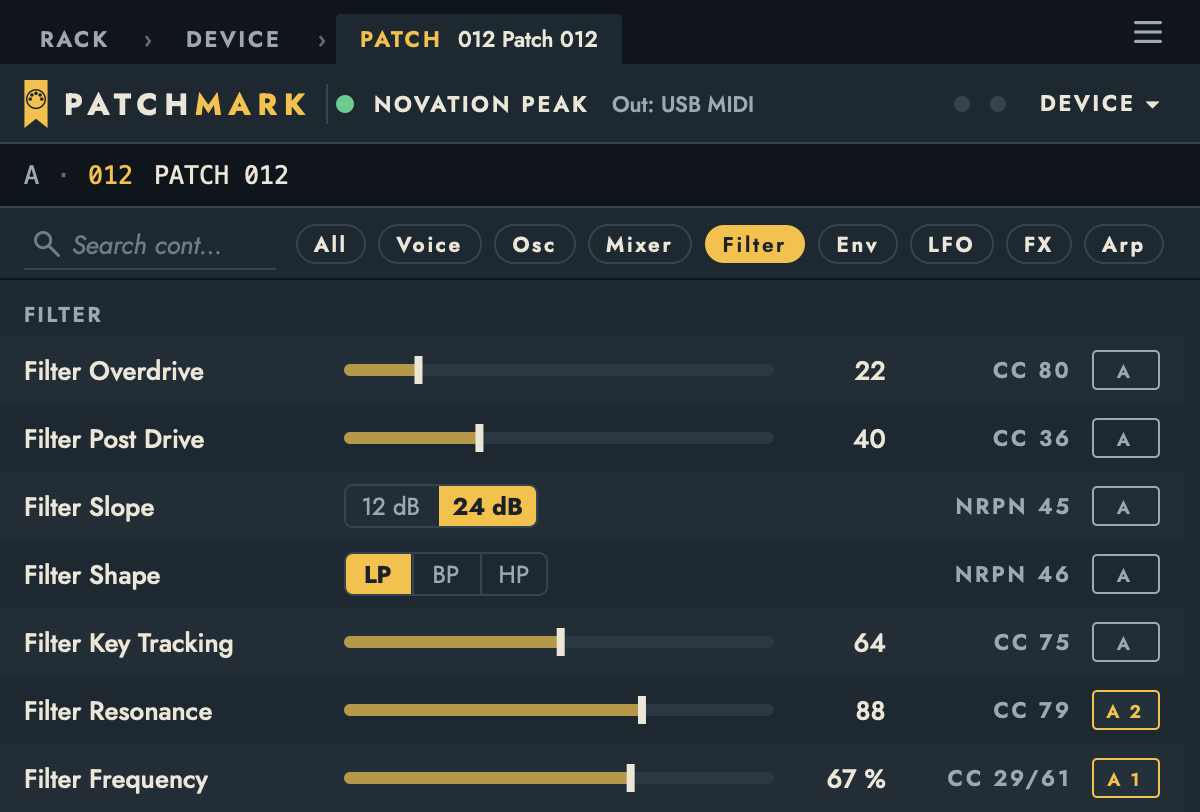
The Patch tab
The tabs at the top read as a path: Rack › Device with your device's name › Patch with the playing patch's. Click Patch to see the device's controls in place of the patch list, and Device to go back.
Each control is a row: its name, a bar, its value, its message (CC 74, CC 29/61 for a 14-bit pair, NRPN 14) and an A button. The value reads as the unit shows it where the device's list says how: 8' for an oscillator's range, +12 for a knob with a centre, 47 % for a filter's cutoff. A control with a few named settings, such as a waveform or an on/off switch, shows them as buttons instead of a bar; one with a long list, as a menu. The controls are grouped in the unit's sections. To find one:
- Chips above the list show one kind of section, such as Osc, Filter or Env. Those that don't fit are under More ▾.
- Search shows only the controls whose name or message has what you type.
Which units come with a list, and how to turn receiving on at the unit, is on each unit's page (Supported devices).
What sound controls can reach
The Patch tab sends CC and NRPN messages, the same ones a unit's own knobs send. How much of a unit it reaches depends on how much of the unit answers them:
- A unit with a full CC or NRPN list, such as the Peak, the Prophet-6 or the H3000: most of its parameters.
- A unit edited over SysEx, as most effects units and many older synths are: only what the unit maps to a CC. SysEx messages are each maker's own format, so the Patch tab doesn't send them.
Some units let you choose what a CC moves. On the PCM91, the Patch row of each program's Edit matrix ties a CC to a parameter: set it there, then Add control… with the same CC, or Learn it. Each program keeps its own patches, so set them in each program you want to turn.
Editing every parameter of a SysEx unit needs an editor made for it. For the Lexicon PCM70 that is Patchmark70. Each unit's page says what its Patch tab reaches.
Turn a control
Drag a row's bar, click one of its buttons, or pick from its menu: the value goes to the unit as you drag or click. The value reads — until Patchmark knows it, as after a recall, since a patch sets its own. With a MIDI input set, turning the knob on the unit itself moves the row too.
Automate it in the DAW
Every Patchmark gives your DAW 64 Control lanes. Click a row's A to put the control on the lowest free lane: the button turns gold and shows the lane, such as A 3. Click it again to free the lane. To choose the lane, right-click A.
The lane is named for the device and the control, such as Peak · Filter Frequency; a free one reads Control 5 (not in use). The DAW shows the lane's value the way the row does, such as 8' or 47 %, and you can type it that way. Automate it as you would a plug-in's knob:
- Record: with the lane set to record (in Logic Pro, Latch), turn the control on the Patch tab or on the unit. The DAW writes the moves; nothing is sent back to the unit for them.
- Draw: points on the lane go to the unit as the song plays.
The lanes are kept with the project. With all 64 taken, the free A buttons are shaded.
Add a control
On a unit whose list lacks a control, or whose CCs you assign yourself (a PCM91, an Eclipse), click Add control… at the end of the list:
- Name it, and choose its Message: CC, CC 14-bit (a pair of CCs, 32 apart, for finer steps; see Pairs of CCs) or NRPN.
- Type its Number, or click Learn and move the control on the unit or a controller: the message and number fill in.
- Set its Range if it isn't the whole one.
- Choose how its values read with Shows: Number, with what the unit shows at each end of the range and a unit (0.2 to 70 s), read back under the fields; %; or Names (Hall, Room, Plate), each with the values it starts and ends on, From and To. + Add name adds one after the last, ✕ removes one, and Spread evenly shares the range between them. Names go from the lowest value up and can't overlap; values between two names read as none, for a unit that uses 1 to 4 and nothing above. Left as it starts, the values read as their numbers.
- Choose its Section: an existing one, or a new name.
The dialog says why a control can't be added, such as a CC that carries Bank Select. Right-click a control you added to Edit, Duplicate, Move up, Move down or Delete it. Added controls are kept with the Device.
A control that comes with the template can be edited too: right-click it and choose Edit…. The dialog is the same. A factory template stays as it is: Save copy makes your own copy of it with the change, named as you choose, and the Device uses the copy from then on. Further edits go into that copy. If a control was wrong, send us the copy with Library ▸ Submit this template… so the factory template gets fixed.
Pairs of CCs
One CC has 128 steps. For finer steps, some units send a control as two CCs: a coarse CC from 1 to 31 and its fine CC 32 higher, such as CC 29 and CC 61. The row shows both numbers (CC 29/61).
- Add a pair by hand: in Add control…, choose CC 14-bit and type the coarse CC. The dialog shows the fine one under it ("and CC 61"). The range runs from 0 to 16383. A pair can't start on CC 0 or above 31, because CC 0 and 32 carry Bank Select and CCs from 32 up are fine halves.
- Learn a pair: click Learn and move the control. When the unit sends a CC below 32 and then the one 32 above, Learn fills in CC 14-bit with both numbers.
- On a unit with a list, its pairs are already there. There's nothing to add.
The Novation Peak splits its pairs differently: 256 steps (0 to 255), not 16384. The coarse CC carries the value's top seven bits, and the fine CC only its last step, sent as 0 or 64. The Peak template has all of these pairs, set up that way, so its rows read and send the right values. Don't add a Peak pair yourself: Add control… and Learn always make a 16384-step pair, which would read wrong on the Peak. If a Peak control is missing from the list, tell us with ☰ ▸ Report a problem and we'll add it to the template.
Name the knobs per program
On some units a CC moves a knob whose job depends on the program, such as the PCM92's soft row or the MX400's effect knobs. Their rows read the knob's name in the playing program:
- Double-click a knob's name, or right-click it and choose Rename knob…, then type its job in this program, such as Delay Time. Return keeps it, Esc doesn't.
- Clear name puts the knob's own name back.
- Copy knob names to… gives this program's names to the programs you choose.
Names are kept with each program, and each change is one undo step. A lane named for a knob follows its name in the playing program.
Units with algorithms
On the Eventide H3000 family a parameter's number depends on the program's algorithm. While a program plays, an Algorithm line above the controls names it, and that algorithm's own controls follow the unit's:
- A factory program's algorithm comes from the maker's preset list, from the factory list.
- For a user program, choose its algorithm from the menu, as on the unit's display. It is kept with the program, and each change is one undo step. Don't know shows the unit's own controls only.
Units with several parts
On a unit whose parts listen on channels of their own, such as the PCM92's Machines or the MX400's Dual Stereo programs, each heading names the part, such as Machine 1 · Soft row, and the chips are the parts. A control goes out on its part's channel, and a knob's name is the one in the program playing in that part.
This manual is for version 0.9.9.