Manual contents
For version 0.9.7 · beta · Change
You're reading the manual for Patchmark 0.9.7. Go to this page for 0.9.9
MIDI Learn
MIDI Learn lets a button on your keyboard, pad controller or foot switch recall a patch: assign a MIDI message from your controller to the patch once, and that message recalls it from then on.
The messages come in through the MIDI input you choose in Device ▾ (see Choosing the MIDI input), and through the controllers you tick in Settings ▸ Controllers (below). The plugin never listens on the DAW track.
Controllers: a keyboard, pedals or pads
The Input in Device setup is usually the unit's own MIDI out, so the plugin hears the unit's replies. A master keyboard, foot pedals or a pad controller are MIDI devices of their own. Tick them in ☰ ▸ Settings ▸ Controllers, which lists every MIDI input on your Mac, and MIDI Learn and the scene triggers listen on them too, in every Patchmark, while each unit's Input stays its own. Tick as many as you like; the choice is yours, the same in every project, and kept when you restart.
The list shows your ticked controllers first. When the Mac has more than four MIDI inputs, Settings shows only the first four (or all the ticked ones, if you ticked more) and Show all below them; click it to see the rest, and Show fewer to fold the list again.
- Each controller has its own light in that list, which blinks when it sends. The IN light in the header stays the unit's own.
- A ticked controller that is unplugged stays ticked and reads not connected. Plug it back in and it works again by itself.
- The port that is this window's Input, where this unit's own MIDI out arrives, reads input from this unit and is listed last. Ticking it changes nothing for this unit: it hears it once, through its Input. Avoid ticking a synth's own MIDI out: its replies would reach MIDI Learn in the other windows.
- Logic and other apps keep hearing the keyboard too: the Mac lets several apps listen to one MIDI input at once.
- A learned trigger doesn't remember which controller taught it: the same key on another ticked controller, or on the unit's Input, recalls the same patch.
- Every Patchmark recalls its own learned patches. When two windows learned the same key, that key switches both units at once.
- A controller only reaches MIDI Learn and the scenes. A Program Change from it doesn't move the patch list the way the unit's own front panel does.
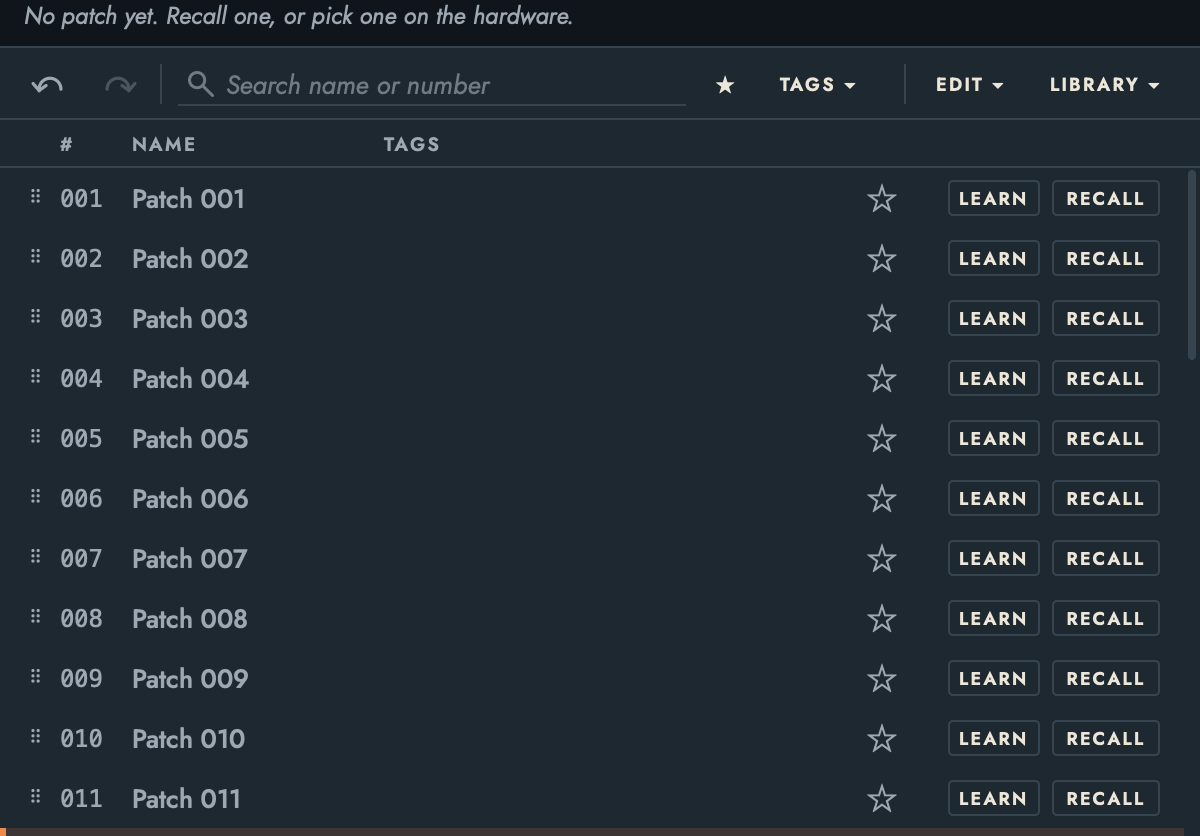
Learning a mapping
-
Click Learn on the patch's row. When the window is narrow and the Learn column is hidden, right-click the row and choose MIDI Learn.
-
The row turns orange, its Learn button turns orange and blinks, and a bar floating over the bottom of the list says Listening: send a Program Change, CC or note from your controller. The list doesn't move. Only one row listens at a time: clicking Learn on another row moves the listening there. To stop without learning anything, click Cancel or ✕ on the bar, press Esc, or click the button again.
-
Send a message from your controller:
- a Program Change (most common)
- a Control Change (CC): press the button; its release (value 0) is not learned. Bank Select (CC 0 and CC 32) is never learned: a foot controller that sends Bank Select before its Program Change gets the Program Change learned. On hardware that picks its banks by NRPN (the Eventide H3000), CC 99, 98, 6 and 38 aren't learned either, for the same reason
- a Note On
MIDI clock (and its Start, Continue and Stop) and active sensing are never learned and never recall anything, so a DAW or a drum machine sending clock on the same input doesn't get in the way: Learn keeps listening for your button. They show in the MIDI monitor only.
-
The mapping is made and saved at once. The Learn button shows the message, such as PC 5, and a green message confirms it, for example Program Change 5 on ch 10 now recalls 012. Its Undo button, like Undo or ⌘Z, takes the mapping back (see Undo and Redo).
No input chosen and no controller ticked: Learn doesn't start. A red strip says MIDI Learn needs a MIDI input, and none is set. Its Device setup button opens the device setup, where you choose the Input; or tick your keyboard in Settings ▸ Controllers.
A message that already recalls another patch: the plugin asks first, for example Program Change 5 already recalls 040 Strings. Move this trigger to 012 Fantasia Pad? Move to 012 moves it (one Undo puts it back on 040); Keep it on 040 leaves everything as it was. A message recalls one patch only.
Using learned mappings
Sending the learned message recalls the patch, as clicking Recall does, and the IN light in the header shows it arriving. This is useful for:
- hardware controllers with buttons
- MIDI foot pedals
- external sequencers
How a message matches:
- Program Change and Note On: the same number on the same channel. A note recalls at any velocity; its Note Off does nothing.
- Control Change: the same controller on the same channel, at any value above 0. So a press recalls and its release does nothing, whatever velocity a pad sends. A knob turned through its range would recall on every step, so knobs don't make good triggers. Configure MIDI… can narrow it to one value (CC 80 = 64), so the other values of that CC stay free for other patches or scenes.
Typing a trigger in: Configure MIDI…
To set a trigger without the controller at hand, right-click the patch's Learn button, or right-click the row, and choose Configure MIDI… (it is in a learned badge's menu too). Choose the message: a Program Change (counted from 1, as the plugin shows programs), a CC at Any value above 0 or Only one value, or a Note (at any velocity), and its Channel and Number. Learn in the dialog fills the fields from the next message your controller sends, without saving it, so you can check them first. Save makes the mapping, as one step you can undo; Clear removes it.
A trigger that already recalls another patch or a scene is said under the fields, naming it, and can't be saved; nor can Bank Select (CC 0 or 32), nor, on hardware that picks its banks by NRPN (the Eventide H3000), CC 99, 98, 6 or 38. Scenes have the same dialog: see Song scenes.
No loops. When the input and the output are the same hardware (a unit that echoes what it receives, a MIDI thru, or a virtual port routed back), the plugin's own Program Change comes back on the input. A message that is a copy of what the plugin sent in the last half second is ignored by MIDI Learn: it is neither learned nor recalls, so a trigger never re-triggers itself. It still shows in the MIDI monitor.
On a template with several banks (the Roland JV-1080: User, Preset A–D), a mapping belongs to the bank the list showed when you learned it. Its message recalls that bank's patch, sending that bank's Bank Select first, whichever bank the list shows now. The same patch number can be learned once per bank, and the list's Learn label shows the mapping of the bank it shows.
If you later choose a template that hides a learned patch or its bank (a DX7 has patches 001–032 only), its message recalls nothing, and the plugin says why in a red message, for example Patch 041 is outside the template's range (DX7: 001–032).
Where mappings are kept
Mappings are saved with the DAW project, with the patches, so each plugin instance has its own (see Where your data is kept). A new mapping marks the project as changed at once.
Importing a bank removes the mappings learned in it, and importing every bank removes them all: the imported patches are different sounds. The import asks first and says how many go (see Exporting and importing the bank).
Managing mappings
Click a patch's learned Learn label (such as PC 5) for its menu. The menu's heading is the message and how it matches, such as CC 80, any value above 0, on ch 1:
- Re-learn: listens again for that patch. The next message replaces the old mapping; Esc keeps it.
- Configure MIDI…: types the trigger in (see above).
- Remove mapping: removes it at once.
- All mappings…: opens the list of every mapping.
The MIDI Learn mappings list shows, for every mapping in every bank, when this arrives: the message, its channel and how it matches (Program Change 5 on ch 10, Note C2, any velocity, on ch 16). It also shows the patch it recalls, with its bank when another bank is shown. Each row has Re-learn, which closes the list and listens for that patch, and Remove. Remove all… asks first. With no mappings, the list says how to learn one.
Removing one mapping, removing all of them, and each re-learn are each one step you can undo (see Undo and Redo).
You can also remove the mappings of several patches at once: select them and choose Edit ▸ Clear… with MIDI Learn mappings ticked (only the bank shown; see Copying a patch and clearing a range).
This manual is for version 0.9.7.