Manual contents
For version 0.9.7 · beta · Change
You're reading the manual for Patchmark 0.9.7. Go to this page for 0.9.9
Searching patches
Type in the search field on the toolbar's second row, and the list shows only the patches that match, as you type. Upper and lower case don't matter, and spaces around what you type are ignored.
On a device with several banks the search looks through every bank at once, unless Use banks is on (Switching banks): then it looks through the bank shown. With Show factory only on, it leaves out the banks you store your own patches in (Show factory only).
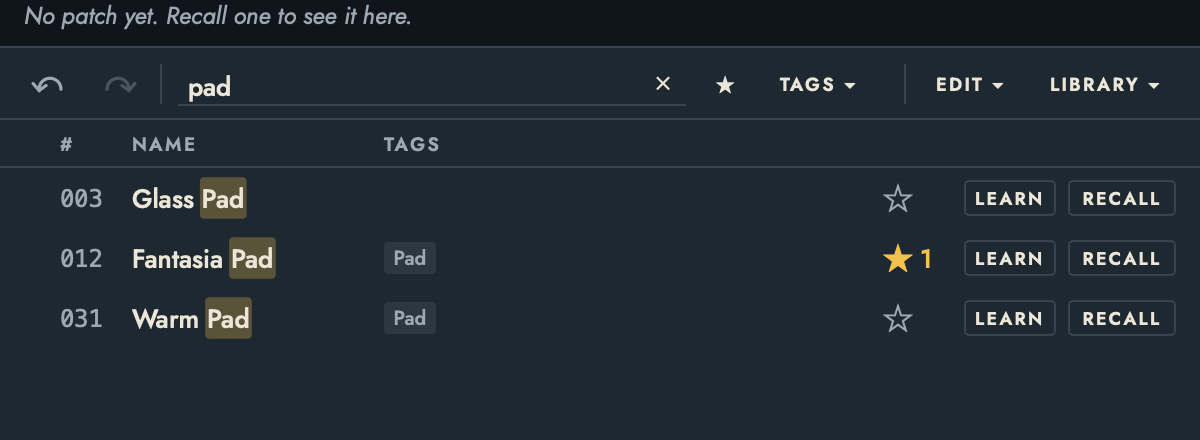
What the search matches
-
A patch's name, anywhere in it: pad finds Glass Pad and Fantasia Pad. The part of the name that matched is highlighted on the row.
-
A tag: bass finds the patches tagged Bass (see Tags).
-
A patch number: type only digits and the search finds the patch with that number in the list. 12 and 012 both find 012, not 112 or 120–128. On hardware with its own numbering, it is that number: 451 on an Eclipse. Names and tags that contain those digits are found too, so 12 also finds Pad 12.
-
The hardware's own number, on hardware that numbers its programs its own way: 451 on an Eclipse, P1.4 on a PCM70 (see Device templates).
-
A factory name, where the template has one and you haven't named the patch: Kaizeeer on an Eclipse.
Patches still called by their default name (Patch 012) are found by their number, not by that name: the name only repeats the number.
The help line at the bottom says how many patches are listed, for example 2 of 128 patches.
Keyboard
- ⌘F jumps to the search field from anywhere in the plugin window and selects what is in it.
- Esc in the field clears it, and so does the ✕ inside the field.
- Return, or Esc in an empty field, leaves the field and keeps the search: the keyboard goes back to the patch list, so Space starts and stops your DAW again. So does a click on a row, Recall or Learn.
With favourites and tags
The search works together with Favourites and the Tags filter: a patch is listed only if it matches all of them. See Favourites and Tags.
Nothing matches
When no patch matches, the list says what it was looking for, for example No patches match “zzz” tagged Bass. Clear search and filters clears the search, Favourites and the tag filter at once.
When only Favourites is on and no patch is starred, the list says No favourites yet instead, with Show all patches.
This manual is for version 0.9.7.