Manual contents
For version 0.9.7 · beta · Change
You're reading the manual for Patchmark 0.9.7. Go to this page for 0.9.9
Tags
Tags are short words you give patches, such as Pad, Bass or Live, to find them again. A patch can have several tags. Tags are saved with your DAW project.
Tag patches
- Double-click a row's Tags area (the grey chips, or the empty space where they go). For several patches at once, select them, then choose Edit ▾ ▸ Tags…, or right-click and choose Tags…. A single click on the Tags area only selects the row.
- The menu lists every tag, ticked when all the selected patches have it:
- choose a tag to add it to all of them, or to remove it when they all have it;
- choose New tag… to type a new one. Spaces around it are dropped, and a tag can't be blank.
- The tags show as grey chips on each row.
Each change is one step in Undo, named after what it did: Add tag Pad to 012, Remove tag Live from 3 patches. A change that changes nothing (removing a tag the patches don't have) adds no step.
Filter by tag
Tags ▾ on the second toolbar row lists every tag in the bank with how many patches the list would show with it:
- tick a tag to show only the patches that have it; tick several to show patches that have any of them;
- the button is gold while a tag filter is on, and the help line says how many patches are listed, for example 3 of 128 patches;
- the tag filter works together with the search and Favourites: the list shows the patches that match all three. The counts beside the tags follow the search and Favourites, so they say what ticking a tag would show;
- Clear tag filter shows every patch again. With no tags yet, the menu says No tags yet.
The filter is kept with your project, with the search and Favourites.
Rename or delete a tag
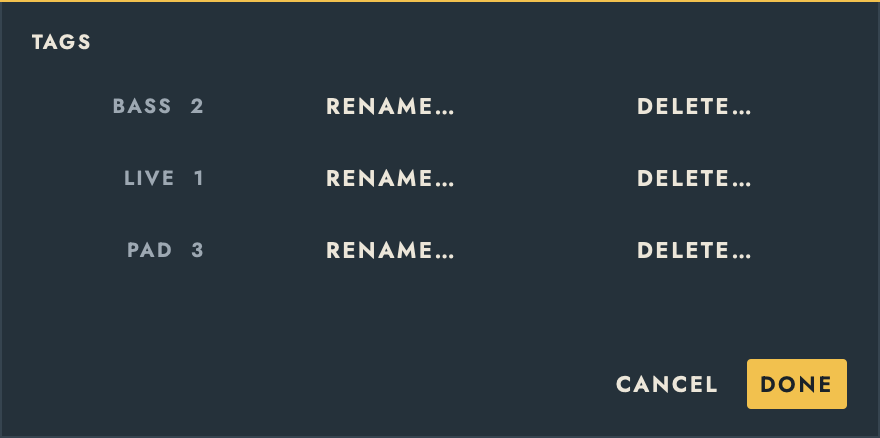
Tags ▾ ▸ Manage tags… lists every tag with how many patches have it:
- Rename… renames the tag on every patch. Renaming it to a tag that already exists merges the two;
- Delete… asks first, with the number of patches: Delete tag “Bass”? It will be removed from 2 patches. You can undo this.
Each is one Undo step. A tag that is renamed or deleted leaves the tag filter.
Good to know
- On a device with several banks, the list shows every bank at once and the filter looks through all of them. With Use banks on, the list shows one bank. A ticked tag stays ticked when you show another bank, even one with no patch that has it: the list is then empty and says why (Switching banks).
- Tags reach the patches your device's template shows, as Copy, Clear and Batch rename do. Patches the template hides keep their tags untouched, and the Tags menus don't list or count them.
- Below 520 pixels wide the Tags column is hidden; the search still finds patches by tag.
This manual is for version 0.9.7.