Manual contents
For version 0.9.7 · beta · Change
You're reading the manual for Patchmark 0.9.7. Go to this page for 0.9.9
My devices
Set a device up once and use it in every project. A saved device keeps its template, its MIDI ports and channel, its bank select, every bank's patch names, favourites, tags and order, its MIDI Learn mappings, and its own settings: Follow hardware, Use banks, Show factory only, Hide empty, Rename on hardware and Backup on rename. Use scenes and Send Program Change are not among them: they are yours on this Mac, for your whole rack, and switching them never asks to save the device.
My devices are at the top of the Device sheet. When you have saved devices and this plugin uses none of them, the sheet opens on the list, with Set up new device and Cancel under it.
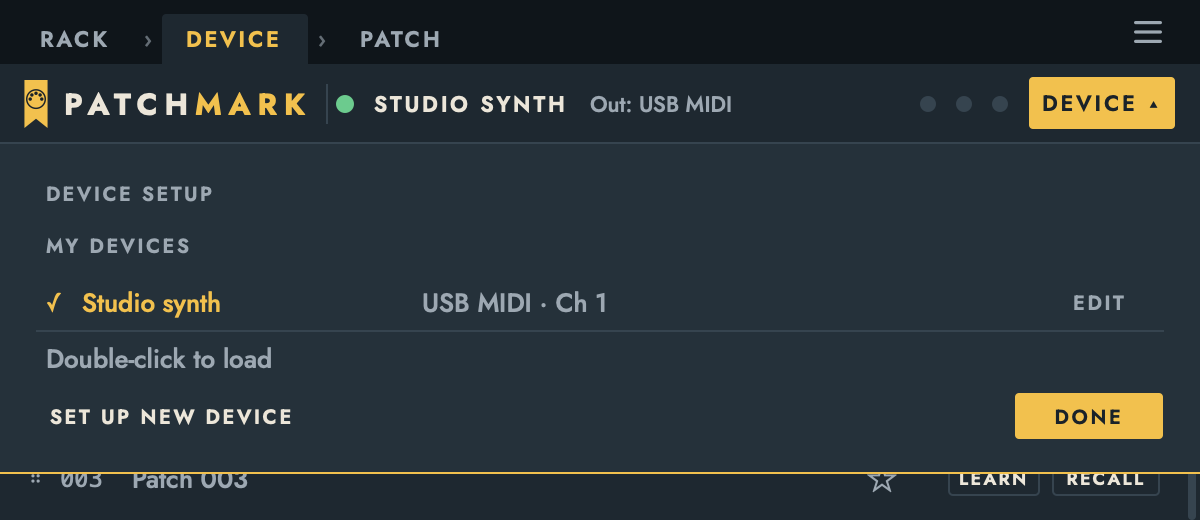
Saving a device
- Open Device and set the device up: its template, Output, Input and Channel. With saved devices already in the list, click Set up new device first.
- Once a setting has changed, the bottom of the sheet shows Cancel, Done and Save…. Click Save…, name it ("Studio JV"), and click Save device. (Done keeps the setup in this plugin without saving it; Cancel puts back what was there.)
It is now in My devices, ticked and in gold: this plugin uses it. The top of the window shows its name ("STUDIO JV") where the synth's model was, and in the rack the unit reads "Lead Synth – Studio JV".
While this plugin uses a saved device, Set up new device, at the bottom left of the sheet, starts a new, empty device in My devices, called "New device", with its setup rows open. Type its name in Name, at the top of the rows.
Using a device
Each device in the list shows its MIDI output port and channel ("USB MIDI · Ch 3"). A port that isn't plugged in shows in red, with "(not connected)".
Double-click a device in the list, or click it and press Return. The plugin takes its template, ports, names and settings at once, the sheet closes, and nothing is sent to the synth until you recall a patch. A message says so, with Undo to go back to what was there. A single click only highlights the device.
The setup rows (Name, Output, Template, Channel, Use banks, Factory only and the rest) show only while you edit a device. Click Edit at the right of its row to change them; the row then says Editing, and closing the sheet hides the rows again. Send test Program Change sits beside Status.
Saving changes to the device
When you star, rename or reorder patches, or change a device's settings, a bar appears above the help line and says what changed: "Patches changed. Save to the device configuration?", "Device setup changed. Save to the device configuration?", or "Patches and setup changed. Save them?". This project keeps the changes either way; the bar asks whether the saved device should have them too. It stays until you choose:
- Save writes the changes to the device, so every project that uses it sees them the next time it loads it. A message says "Saved to the local device configuration". The hardware is untouched; if you renamed patches the hardware can store, the plugin then asks whether to rename them on the hardware too (Renaming a patch).
- Discard puts back what the device holds: "Changes discarded: back to the saved device configuration". The message offers Undo, which brings your changes back.
- Duplicate… asks for a name ("Studio JV copy") and saves the changes as a new device, which this plugin then uses. The device you started from stays as it was.
Undoing back to what the device holds hides the bar too. In a narrow window the bar says "Save changes to the device configuration?", with its buttons on a line of their own.
If an automatic save fails, the bar says "Couldn't save your changes to the local device configuration. Check your Mac's disk and permissions, then try again." Save tries again.
Loading another device while the bar is showing doesn't save your changes; Undo brings them back.
To have every change go back to the device by itself, with no bar, turn on Settings ▸ Device ▸ Autosave device configuration. It saves name, favourite and setting changes to your saved device; the hardware is untouched.
Loading a device or opening a project never changes the saved device. Choosing another bank to look at isn't a change either.
Two plugins on the same device
When two Patchmarks use the same device, in one project or in two apps at once, what one saves shows up in the other within a second. The other plugin keeps the bank it shows and the patch the synth is on, and its Undo history is left alone.
If the other plugin has changes of its own that aren't saved yet, it keeps them and the bar stays. Save then writes its version over the one just saved, and Discard brings in the one just saved.
If the device is deleted in one plugin, the other plugins of that project are emptied too (see below). A plugin in another project or app keeps what it holds and no longer uses a saved device.
Rename, duplicate, delete
Click Edit beside the device. Then:
- Name, at the top of the rows: type a new name and press Return. Each name is used once.
- Duplicate, beside Done: a copy called "Studio JV copy", for trying something out. This plugin stays on the device it uses.
- Delete…, the red button at the bottom left: asks first. It deletes the device from this Mac and from every track of the open project that uses it: those tracks go back to "No device set up", with no names or favourites. Nothing is sent to the hardware, and backups and song scenes stay. Other projects keep their own copy of the device.
Projects and other Macs
A project keeps its own copy of the device it uses, so it opens the same on a Mac that doesn't have that device saved. It still remembers which device it was, and on the Mac that has it, the device is ticked again.
When you open a project whose device isn't in My devices (deleted, or never saved on this Mac), the first Patchmark window you open on one of its tracks says so, once for the project:
- Remove from project empties every track of the project that used it.
- Check settings opens Device setup with the project's copy. Save… puts it back in My devices under its old name, and every track of the project that had it uses it again.
- OK keeps the project's copy as it is. You'll be asked again the next time the project opens.
Song scenes stay with the project, because they cover every device in it.
Saved devices live in ~/Library/Patchmark/devices/, one file per device, shared by every plugin format.
This manual is for version 0.9.7.