Manual contents
For version 0.9.7 · beta · Change
You're reading the manual for Patchmark 0.9.7. Go to this page for 0.9.9
MIDI monitor
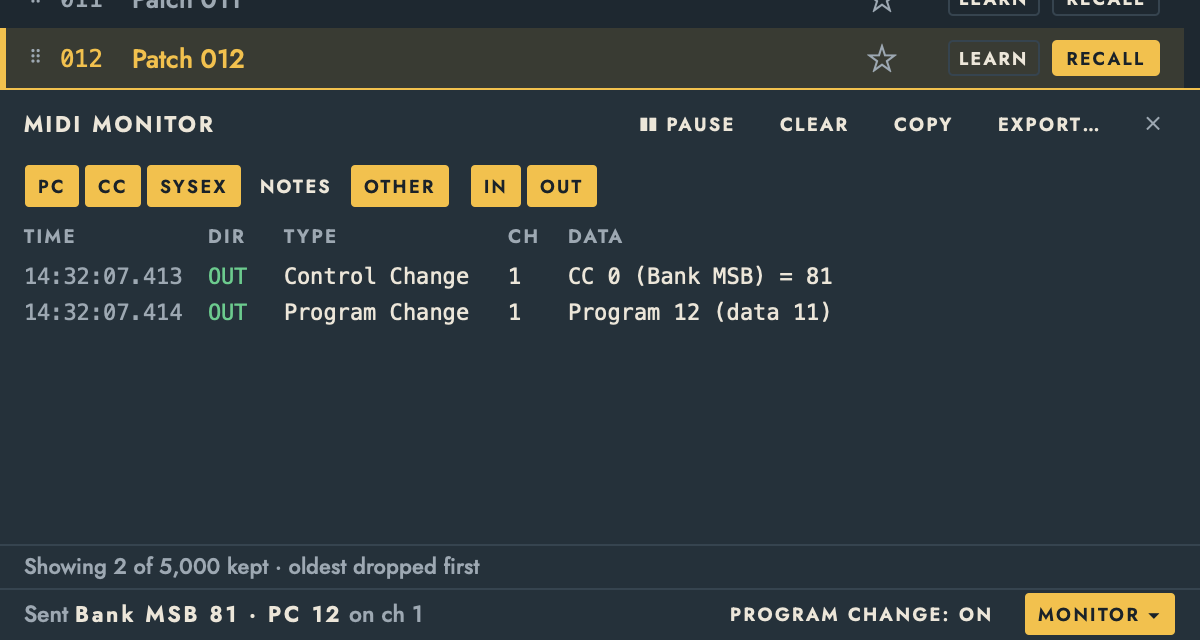
The MIDI monitor shows the MIDI messages sent to and received from the chosen ports: the output port your hardware is on, and the MIDI input chosen in the device setup. Use it to check what actually went to your hardware.
Opening it
- Click Monitor ▴ at the right of the help line. The monitor opens as a drawer above the help line, and the patch list stays visible above it. The button turns gold and reads Monitor ▾
- Click it again, or ✕ in the drawer, to close it
- Before any MIDI has been sent or received it says No MIDI yet
Reading the log
- Each line shows:
- Time: to the millisecond, e.g. 14:32:07.412
- Dir: OUT for what was sent to the output port, IN for what came in on the input port
- Type: Program Change, Control Change, SysEx, Note On, …
- Ch: the MIDI channel, or – for messages that have none (SysEx)
- Data: what the message says. A Program Change shows the program counted from 1, as on the panels of most units, and the number actually sent: Program 12 (data 11). A Control Change names the common controllers: CC 0 (Bank MSB) = 81. A SysEx message of more than six bytes shows its first five bytes, …, its last byte and its length; Copy and Export give every byte of it (below)
- The newest line is at the bottom, and the log scrolls to keep it in view. Scroll up to read earlier lines, and it stops following until you scroll back to the bottom
- A message is logged as it is sent to the output port, whether the transport is playing or not. A message that could not be sent (no port open) is not logged
- Incoming messages (IN) come from the MIDI input port chosen in the device setup (Choosing the MIDI Input); with Input None there are none
- It keeps recording while the drawer or the plugin window is closed, so opening it shows what happened meanwhile
- It keeps the last 5,000 messages and drops the oldest first. The line at the bottom of the drawer says how many it holds, e.g. Showing 312 of 5,000 kept · oldest dropped first
Pause, Resume and Clear
- ❚❚ Pause freezes the log so you can read it. Messages are still recorded, and the drawer counts them: Paused · 42 new messages
- ▶ Resume shows everything again, including what arrived while paused
- Clear empties the log. If the monitor is paused, it stays paused
Filtering
- The chips under the drawer's title choose what the log lists:
- PC: Program Change;
- CC: Control Change, including Bank Select;
- SysEx;
- Notes: note on and off;
- Other: pitch bend, pressure, Start, Stop and everything else.
MIDI clock and active sensing
- A DAW or a drum machine may send MIDI clock all the time, and many units send active sensing a few times a second. The monitor doesn't list either: they aren't copied, exported or counted while paused, and a running clock never pushes your patch changes out of the 5,000 kept. To see whether clock is arriving, watch the CLOCK light in the header, which blinks on every beat. It is there when your device's template says the hardware can send clock (MIDI input).
- Start, Continue and Stop are rare, so each is a line of its own (named in the Type column), and you can read the order your transport sent them in.
- None of them lights IN, and MIDI Learn and the scenes' triggers ignore them.
- In and Out choose received and sent messages. A chip is gold while its messages are shown. Click it to hide them, click again to show them.
- Notes starts off, so a controller keyboard's notes don't bury your patch changes. Turn it on to see them.
- The filter only changes what is listed: the monitor keeps recording everything, so turning a chip back on shows the earlier messages too.
- While paused, the count of new messages includes only the kinds you are showing, and goes no higher than what ▶ Resume can show.
- The Showing … of 5,000 kept line counts what is listed.
Saving the log
- Export… saves the messages the monitor is listing, with the current filter, to a text file. While paused, it saves what you see, not what arrived since.
- It opens the system's save dialog and suggests midi-log.txt in your Documents folder.
- The file has one line per message, with the columns separated by tabs, so it opens in a text editor or a spreadsheet.
- Every message is saved whole: a SysEx message has every one of its bytes, however long it is, even where its line in the log shows only the first few. A long dump makes a long line.
- When the file is saved, a message says so (Saved 312 messages to “midi-log.txt”), with Show in Finder. If it can't be saved, a red message says why, e.g. Couldn't save the log: the folder is read-only. It stays until you close it.
- Export… is greyed out while the monitor lists nothing.
Copying messages
- Copy, next to Export…, copies every message listed. It is greyed out while the monitor lists nothing.
- Click a message to select it; selected messages are highlighted. Shift-click selects a run of messages, and ⌘-click adds or removes one.
- ⌘C copies the selected messages. Right-click the log for Copy (the selection) and Copy all (every message listed). Some hosts keep ⌘C for themselves; the right-click menu and the Copy button always work.
- The copy is the same text Export writes: a header line, then one line per message with tab-separated columns. Every message is copied whole, every byte of a SysEx message included, so the hardware's identity reply or a short command is ready to paste into a support message or a template.
- A message says how many were copied (Copied 2 messages).
- Changing the filter, Clear, or the oldest message dropping off a full log clears the selection, so a copy is never of other messages than the ones you picked. Pause first to copy from a busy log.
The log is not saved with your project, and neither is the filter. The IN light in the header flashes whenever MIDI arrives from the chosen input (see Choosing the MIDI input), except MIDI clock and active sensing: clock blinks the CLOCK light instead, on every beat. Neither lights IN, and MIDI Learn and the scenes' triggers ignore them.
This manual is for version 0.9.7.